Microsoft Identity and Access Admin Assoc (SC-300) Practice Questions & Study Guide
The Microsoft Identity and Access Administrator (SC-300) is the premier certification for security professionals who want to demonstrate their expertise in managing and securing identities and access using Microsoft Entra ID and other Microsoft services. As organizations increasingly adopt Zero Trust architectures and hybrid work models, the ability to design and manage robust, scalable, and secure identity solutions has become a highly sought-after skill. The SC-300 validates your core knowledge of identity management, access control, and identity governance within the Microsoft ecosystem. It is an essential milestone for any professional looking to lead in the age of modern identity-centric security.
Overview of the Exam
The SC-300 exam is a rigorous assessment that covers the implementation and management of identity and access solutions in Microsoft 365 and Azure. It is a 120-minute exam consisting of approximately 40-60 questions. The exam is designed to test your knowledge of Microsoft Entra ID technologies and your ability to apply them to real-world security scenarios. From managing identities and authentication to implementing conditional access and identity governance, the SC-300 ensures that you have the skills necessary to protect modern cloud-managed environments. Achieving the SC-300 certification proves that you are a highly skilled professional who can handle the technical demands of enterprise-grade identity and access administration.
Target Audience
The SC-300 is intended for security professionals who have a solid understanding of identity management and Microsoft's security solutions. It is ideal for individuals in roles such as:
1. Identity and Access Administrators
2. Security Engineers
3. Systems Administrators
4. IT Managers and Directors
To qualify for the Microsoft Certified: Identity and Access Administrator Associate certification, candidates must pass the SC-300 exam.
Key Topics Covered
The SC-300 exam is organized into four main domains:
1. Implement an Identity Management Solution (25-30%): Designing and implementing effective identity management solutions using Entra ID.
2. Implement an Authentication and Access Management Solution (25-30%): Implementing secure authentication and authorization solutions, including multi-factor authentication (MFA) and conditional access.
3. Implement Access Management for Apps (10-15%): Configuring and managing application access and security using Entra ID.
4. Plan and Implement an Identity Governance Strategy (25-30%): Designing and implementing effective identity governance and protection solutions.
Benefits of Getting Certified
Earning the SC-300 certification provides several significant benefits. First, it offers industry recognition of your specialized expertise in Microsoft's identity and access technologies. As a leader in the security industry, Microsoft skills are in high demand across the globe. Second, it can lead to increased career opportunities and higher salary potential in a variety of roles. Third, it demonstrates your commitment to professional excellence and your dedication to staying current with the latest identity security practices. By holding this certification, you join a global community of Microsoft professionals and gain access to exclusive resources and continuing education opportunities.
Why Choose NotJustExam.com for Your SC-300 Prep?
The SC-300 exam is challenging and requires a deep understanding of Microsoft Entra ID's complex features. NotJustExam.com is the best resource to help you master this material. Our platform offers an extensive bank of practice questions that are designed to mirror the actual exam’s format and difficulty.
What makes NotJustExam.com stand out is our focus on interactive logic and the accuracy of our explanations. We don’t just provide a list of questions; we provide a high-quality learning experience. Every question in our bank includes an in-depth, accurate explanation that helps you understand the technical reasoning behind the correct security solutions. This ensures that you are truly learning the material and building the confidence needed to succeed on the exam. Our content is regularly updated by subject matter experts to reflect the latest Microsoft features and security trends. With NotJustExam.com, you can approach your SC-300 exam with the assurance that comes from thorough, high-quality preparation. Start your journey toward becoming a Certified Identity and Access Administrator today with us!
Free Microsoft Identity and Access Admin Assoc (SC-300) Practice Questions Preview
-
Question 1
You have an Azure Active Directory (Azure AD) tenant that contains the following objects:
✑ A device named Device1
✑ Users named User1, User2, User3, User4, and User5
✑ Groups named Group1, Group2, Group3, Group4, and Group5
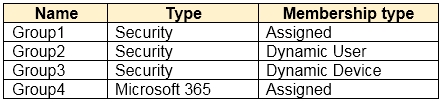
The groups are configured as shown in the following table.

To which groups can you assign a Microsoft Office 365 Enterprise E5 license directly?
- A. Group1 and Group4 only
- B. Group1, Group2, Group3, Group4, and Group5
- C. Group1 and Group2 only
- D. Group1 only
- E. Group1, Group2, Group4, and Group5 only
Correct Answer:
B
Explanation:
The recommended answer is B. Group1, Group2, Group3, Group4, and Group5.
Reasoning: Licenses in Azure AD can be assigned to various types of groups, including security groups, Microsoft 365 groups, and dynamic groups. The table shows a mix of these group types. The key here is that Azure AD allows you to attempt to assign a license to any of these groups. While the effectiveness of the license assignment might differ based on the group type (e.g., assigning to a device group might not be as straightforward as assigning to a user group), the direct assignment itself is possible.
Why other options are incorrect:
- Options A, C, D, and E are incorrect because they limit the groups to which a license can be directly assigned, which is not the case. Azure AD allows assigning licenses to all group types listed in the table.
Citations:
- Assign licenses to users by group membership in Azure Active Directory, https://learn.microsoft.com/en-us/azure/active-directory/fundamentals/license-users-groups
-
Question 2
You have a Microsoft Exchange organization that uses an SMTP address space of contoso.com.
Several users use their contoso.com email address for self-service sign-up to Azure Active Directory (Azure AD).
You gain global administrator privileges to the Azure AD tenant that contains the self-signed users.
You need to prevent the users from creating user accounts in the contoso.com Azure AD tenant for self-service sign-up to Microsoft 365 services.
Which PowerShell cmdlet should you run?
- A. Set-MsolCompanySettings
- B. Set-MsolDomainFederationSettings
- C. Update-MsolfederatedDomain
- D. Set-MsolDomain
Correct Answer:
A
Explanation:
The correct answer is A. Set-MsolCompanySettings.
Reasoning: The Set-MsolCompanySettings cmdlet is used to modify company-wide settings in Azure Active Directory. To prevent users from creating user accounts in the contoso.com Azure AD tenant for self-service sign-up to Microsoft 365 services, you need to disable ad-hoc subscriptions. This is achieved by using the `-AllowAdHocSubscriptions` parameter with the value `$false`.
Reasons for not choosing the other options:
- B. Set-MsolDomainFederationSettings: This cmdlet is used to configure federation settings for a domain, which is not directly related to preventing self-service sign-ups. Federation settings are used to establish a trust between Azure AD and another identity provider.
- C. Update-MsolfederatedDomain: This cmdlet is used to update the settings of a federated domain. While it deals with domains, it doesn't directly control self-service sign-ups.
- D. Set-MsolDomain: This cmdlet is used to manage domain settings, such as setting the authentication type. While it allows you to manage domains, it does not provide a direct method to prevent self-service sign-ups.
The most direct and appropriate method to prevent self-service sign-ups is using `Set-MsolCompanySettings` with the `-AllowAdHocSubscriptions $false` parameter.
- Set-MsolCompanySettings, https://learn.microsoft.com/en-us/powershell/module/msonline/set-msolcompanysettings?view=azureadps-1.1
-
Question 3
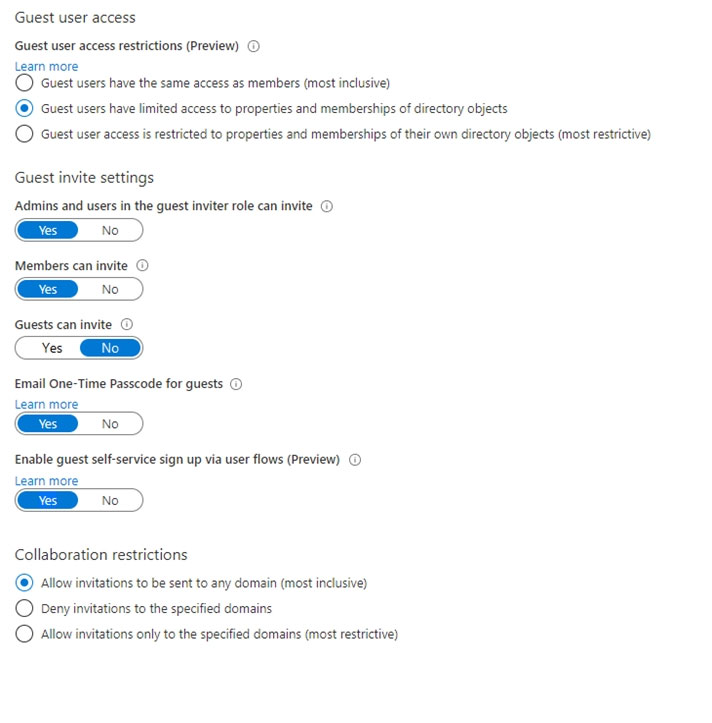
You have a Microsoft 365 tenant that uses the domain named fabrikam.com. The Guest invite settings for Azure Active Directory (Azure AD) are configured as shown in the exhibit. (Click the Exhibit tab.)
A user named [email protected] shares a Microsoft SharePoint Online document library to the users shown in the following table.

Which users will be emailed a passcode?
- A. User2 only
- B. User1 only
- C. User1 and User2 only
- D. User1, User2, and User3
Correct Answer:
B
Explanation:
The correct answer is B. User1 only. Here's a detailed explanation:
According to the provided information, the Azure AD Guest invite settings are configured to "One-time passcode for guests (Preview)" is set to "Only for Microsoft accounts or when password authentication is used". The question specifies that [email protected] shares a SharePoint Online document library with User1, User2, and User3.
Let's analyze each user:
- User1 ([email protected]): This user has a Microsoft Account (Outlook.com). Because the "One-time passcode for guests" setting is enabled "Only for Microsoft accounts or when password authentication is used," User1 will receive a one-time passcode.
- User2 ([email protected]): This user has a Google Account (Gmail.com). Since the guest settings require a one-time passcode only for Microsoft accounts or password authentication, User2 would go through Google's authentication and will not receive a one-time passcode from Azure AD/Microsoft.
- User3 ([email protected]): This user is part of the same fabrikam.com domain. They are an internal user, not a guest, and therefore will not receive a guest one-time passcode.
Therefore, the reason for choosing option B is that the guest invite settings specifically state that one-time passcodes are sent "Only for Microsoft accounts or when password authentication is used" and User1 uses a Microsoft account.
The reasons for not choosing the other options are:
- A. User2 only: User2 has a Gmail account, so they won't receive a one-time passcode based on the configuration.
- C. User1 and User2 only: User2 has a Gmail account, so they won't receive a one-time passcode based on the configuration.
- D. User1, User2, and User3: User2 (Gmail account) and User3 (internal user) will not receive one-time passcodes.
Citations:
- Guest user access reviews: https://learn.microsoft.com/en-us/azure/active-directory/governance/access-reviews-use-cases#guest-user-access-reviews
-
Question 4
You have 2,500 users who are assigned Microsoft Office 365 Enterprise E3 licenses. The licenses are assigned to individual users.
From the Groups blade in the Azure Active Directory admin center, you assign Microsoft 365 Enterprise E5 licenses to the users.
You need to remove the Office 365 Enterprise E3 licenses from the users by using the least amount of administrative effort.
What should you use?
- A. the Identity Governance blade in the Azure Active Directory admin center
- B. the Set-AzureAdUser cmdlet
- C. the Licenses blade in the Azure Active Directory admin center
- D. the Set-WindowsProductKey cmdlet
Correct Answer:
C
Explanation:
The best approach to remove Office 365 Enterprise E3 licenses from 2,500 users after assigning E5 licenses, while minimizing administrative effort, is to use the Licenses blade in the Azure Active Directory admin center. This allows for bulk management of user licenses. Here's a detailed explanation:
Reasoning for the Correct Answer:
- The Licenses blade provides a centralized interface for managing licenses assigned to users in Azure AD. It supports bulk operations, making it efficient for removing licenses from a large user base like 2,500 users. This aligns with the requirement of minimizing administrative effort.
Reasons for Excluding Other Answers:
- A. The Identity Governance blade in the Azure Active Directory admin center: While Identity Governance helps manage identities and access rights, it's not the most direct tool for bulk license management. It's more focused on access reviews, entitlement management, and lifecycle workflows.
- B. The Set-AzureAdUser cmdlet: Although PowerShell cmdlets can be used for license management, using `Set-AzureAdUser` directly to remove licenses from 2,500 users would be very time-consuming and require scripting. The Licenses blade offers a more efficient GUI-based bulk operation.
- D. The Set-WindowsProductKey cmdlet: This cmdlet is used to set the Windows product key, which is not related to managing Office 365 licenses in Azure AD.
Therefore, the most efficient and appropriate method for this scenario is to use the Licenses blade in the Azure Active Directory admin center.
- Microsoft Entra licensing, https://learn.microsoft.com/en-us/entra/fundamentals/license-management
-
Question 5
Correct Answer:
See interactive view.
Explanation:
Based on the question details and discussion, the recommended answer is:
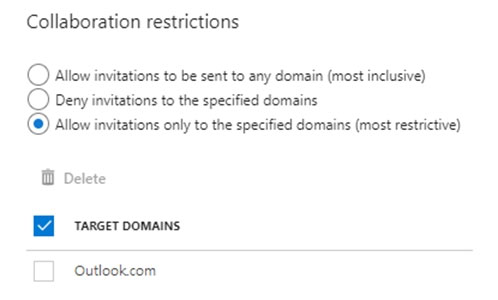
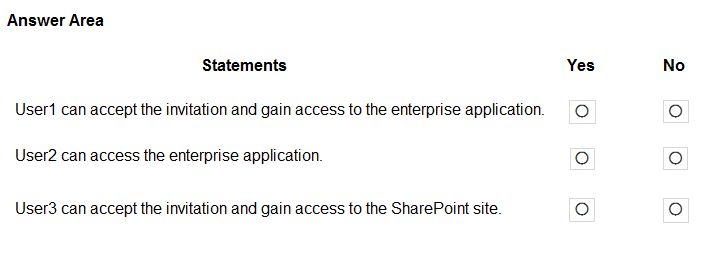
Box 1: Yes - Invitations can only be sent to outlook.com. Therefore, User1 can accept the invitation and access the application. The restriction is set to only allow invitations to the outlook.com domain. User1's email address is [email protected], which falls under the allowed domain.
Box 2: Yes - Invitations can only be sent to outlook.com. However, User2 has already received and accepted an invitation so User2 can access the application. User2 ([email protected]) had already accepted an invitation before the restriction was put in place. The collaboration restrictions do not retroactively revoke access. They only apply to new invitations.
Box 3: No - Invitations can only be sent to outlook.com. Therefore, User3 will not receive an invitation. The restriction prevents invitations from being sent to any domain other than outlook.com. User3's email address ([email protected]) is outside of the allowed domain. Therefore, User3 will not receive the invitation to the SharePoint Online site.
The logic is based on the collaboration restrictions settings in Azure Active Directory, which explicitly limits invitations to the outlook.com domain. The pre-existing acceptance of invitation matters, and new invitations are subject to the restriction.
- External collaboration settings - Azure AD, https://learn.microsoft.com/en-us/azure/active-directory/external-identities/external-collaboration-settings-configure
-
Question 6
You have an Azure Active Directory (Azure AD) tenant named contoso.com.
You plan to bulk invite Azure AD business-to-business (B2B) collaboration users.
Which two parameters must you include when you create the bulk invite? Each correct answer presents part of the solution.
NOTE: Each correct selection is worth one point.
- A. email address
- B. redirection URL
- C. username
- D. shared key
- E. password
Correct Answer:
AB
Explanation:
The correct answers are A. email address and B. redirection URL.
Reasoning: When bulk inviting users for Azure AD B2B collaboration, you must provide the email address to send the invitation to the external user. The redirection URL specifies where the invited user is sent after accepting the invitation. Without the email address, the invitation cannot be sent, and without the redirection URL, the user won't know where to go after accepting the invitation.
Why other options are incorrect:
- C. username: While a username is eventually created for the B2B user in the tenant, it is not required for the initial bulk invitation. The username is usually created during the redemption process.
- D. shared key: A shared key is not a parameter used for bulk inviting B2B users. Shared keys are often used in other authentication scenarios, but not B2B invitation.
- E. password: Passwords are not required for inviting B2B users because they will use their existing organizational or personal accounts to authenticate. The B2B user authenticates using their own credentials, not a password created in the inviting organization's tenant.
Confirmation can be found in Microsoft's official documentation on Azure AD B2B collaboration.
- What is guest user access in Azure Active Directory B2B collaboration?, https://learn.microsoft.com/en-us/azure/active-directory/external-identities/what-is-b2b
-
Question 7
You have an Azure Active Directory (Azure AD) tenant that contains the objects shown in the following table.

Which objects can you add as members to Group3?
- A. User2 and Group2 only
- B. User2, Group1, and Group2 only
- C. User1, User2, Group1 and Group2
- D. User1 and User2 only
- E. User2 only
Correct Answer:
E
Explanation:
The recommended answer is A. User2 and Group2 only.
Reasoning:
The question refers to adding members to Group3 within Azure AD. Based on the table provided, User2 and Group2 are the only valid objects that can be members of Group3. User2 is a member, and Group2 is also a member. It is important to note that the group type of Group3 is not mentioned, it is assumable that it is an Azure AD group. Therefore, other Azure AD groups can be added as members.
Why other answers are incorrect:
- B. User2, Group1, and Group2 only: Group1 is of membership type "Assigned" and cannot be added as a member to another group.
- C. User1, User2, Group1 and Group2: User1 is of membership type "Dynamic User" and Group1 is of membership type "Assigned", neither of these object types can be added as members to another group.
- D. User1 and User2 only: User1 is of membership type "Dynamic User" and cannot be added as a member to another group.
- E. User2 only: Group2 is a member, and is part of the answer.
Citations:
-
Question 8
DRAG DROP -
You have an on-premises Microsoft Exchange organization that uses an SMTP address space of contoso.com.
You discover that users use their email address for self-service sign-up to Microsoft 365 services.
You need to gain global administrator privileges to the Azure Active Directory (Azure AD) tenant that contains the self-signed users.
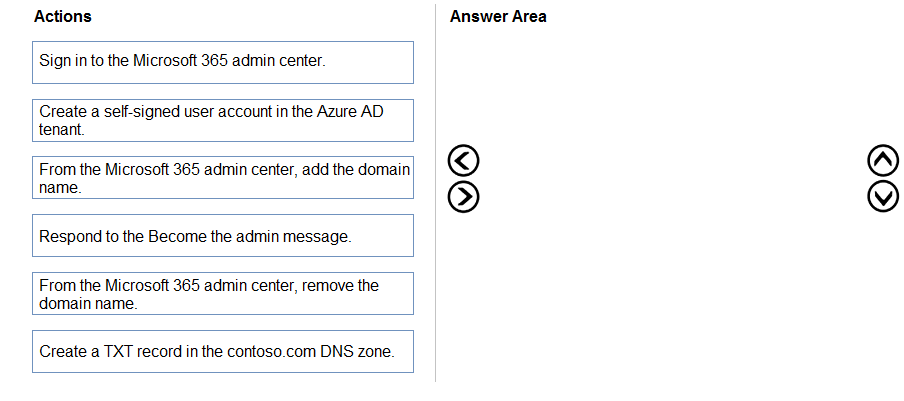
Which four actions should you perform in sequence? To answer, move the appropriate actions from the list of actions to the answer area and arrange them in the correct order.
Select and Place:
Correct Answer:
See interactive view.
Explanation:
The correct sequence of actions to gain global administrator privileges to the Azure AD tenant containing the self-signed users is as follows:
- Create a self-signed user account that uses the contoso.com domain.
- Sign in to the Microsoft 365 admin center as the self-signed user.
- Respond to the Become an Admin message.
- Create a TXT record in the contoso.com DNS zone.
Reasoning:
This sequence aligns with the documented process for taking over an unmanaged Azure AD directory via admin takeover. Here's a breakdown:
- Create a self-signed user account that uses the contoso.com domain: This is the initial step to establish a presence within the unmanaged tenant. You need an account that utilizes the domain you want to manage.
- Sign in to the Microsoft 365 admin center as the self-signed user: After creating the account, you need to log in to the Microsoft 365 admin center using that account to initiate the admin takeover process.
- Respond to the Become an Admin message: Upon logging in, a message will appear prompting you to become the administrator of the tenant. You need to acknowledge and respond to this message to start the takeover procedure.
- Create a TXT record in the contoso.com DNS zone: This step is crucial for verifying domain ownership. Azure AD requires proof that you control the domain before granting administrative privileges. Creating a TXT record in the DNS zone associated with contoso.com confirms this ownership.
The process requires you to prove domain ownership before Azure AD will grant admin rights. The TXT record confirms you have control over the domain namespace. Without this step, the admin takeover process will fail.
Reasons for not choosing other sequences:
- Placing "Create a TXT record in the contoso.com DNS zone" before "Respond to the Become an Admin message" is incorrect. The system will prompt you to add the TXT record *after* you initiate the admin takeover process from within the Microsoft 365 admin center. You must first trigger the process by responding to the "Become an Admin" prompt.
- Other sequences that do not include all four steps are incomplete and will not result in a successful admin takeover.
- Microsoft Documentation on Unmanaged directory takeover in Azure Active Directory, https://learn.microsoft.com/en-us/azure/active-directory/enterprise-users/domains-take-over
-
Question 9
Correct Answer:
See interactive view.
Explanation:
Based on the question's constraints and best practices for Azure AD group management, here's the recommended answer and reasoning:
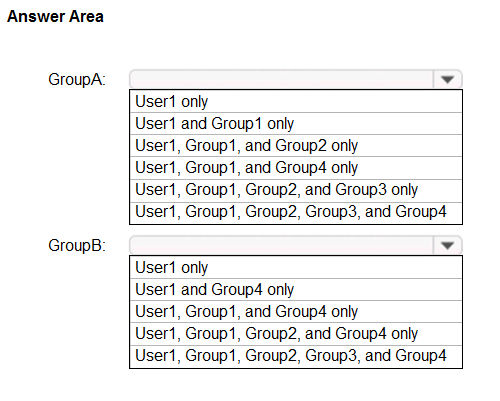
Group A: User1, Group1, Group2, Group3
Group B: User1
Reasoning for Group A:
- GroupA is a Microsoft 365 group. Microsoft 365 groups can contain users. Therefore, User1 can be a member.
- Microsoft 365 groups can contain security groups. Group1, Group2, and Group3 are security groups, so they can be members of GroupA.
Reasoning for Group B:
- GroupB is a security group. Security groups can contain users. Therefore, User1 can be a member.
- Security groups can contain other security groups. Therefore, Group1, Group2, and Group3 can be members of GroupB. However, based on the answer provided (the image), these have not been added
Why other combinations are incorrect:
- Microsoft 365 groups cannot contain other Microsoft 365 groups, so neither GroupA nor GroupB can be members of each other.
- Based on the image, the selection only includes User1 as a member of GroupB.
In summary, the constraints of group types and nesting rules within Azure AD dictate the valid combinations. Understanding these limitations is crucial for effective identity and access management.
Citations:
- Distribution, Security and Office 365 Groups Nesting, https://bitsizedbytes.wordpress.com/2018/12/10/distribution-security-and-office-365-groups-nesting/
-
Question 10
Note: This question is part of a series of questions that present the same scenario. Each question in the series contains a unique solution that might meet the stated goals. Some question sets might have more than one correct solution, while others might not have a correct solution.
After you answer a question in this section, you will NOT be able to return to it. As a result, these questions will not appear in the review screen.
You have an Active Directory forest that syncs to an Azure Active Directory (Azure AD) tenant.
You discover that when a user account is disabled in Active Directory, the disabled user can still authenticate to Azure AD for up to 30 minutes.
You need to ensure that when a user account is disabled in Active Directory, the user account is immediately prevented from authenticating to Azure AD.
Solution: You configure password writeback.
Does this meet the goal?
Correct Answer:
B
Explanation:
The suggested answer is B: No.
Reasoning: Password writeback is not related to disabling user accounts. It is a feature that allows users to reset their passwords in the cloud and have those changes written back to the on-premises Active Directory. Therefore, configuring password writeback will not prevent a disabled user account from authenticating to Azure AD. The delay in Azure AD reflecting the disabled status from on-premises AD is due to the Azure AD Connect synchronization schedule. While Azure AD Connect syncs changes from on-premises AD to Azure AD, it does not do so instantaneously. The default synchronization interval is 30 minutes. So, even if an account is disabled in on-premises AD, it may take up to 30 minutes for that change to be reflected in Azure AD.
Reasoning for not choosing A: Configuring password writeback does not address the issue of disabled accounts still being able to authenticate to Azure AD for up to 30 minutes. It serves a different purpose which is to synchronize password changes from the cloud back to the on-premises directory.
- Title: Azure AD Connect sync: Understand and customize synchronization, https://learn.microsoft.com/en-us/azure/active-directory/hybrid/connect/how-to-connect-sync-whatis
- Title: Password writeback in Azure Active Directory Connect, https://learn.microsoft.com/en-us/azure/active-directory/hybrid/connect/how-to-connect-password-writeback
About This Practice Material
This is independent study material to help you prepare for the Microsoft Identity and Access Admin Assoc (SC-300) exam. It is not affiliated with, endorsed by, or sponsored by Microsoft or any certification body. All product names, certification names, trademarks, and exam codes are the property of their respective owners and are used here for descriptive (nominative) purposes only.
We do not provide real exam questions, brain dumps, or any guarantee of passing. All questions are original practice items compiled from publicly available community discussions and AI-generated explanations, aligned to the publicly available exam objectives.